
You’re writing code, but your API docs keep getting covered.
You’re following a tutorial, but the video disappears every time you click back into the editor.
You’re in a meeting, but your notes are always one shortcut away.
Most productivity advice on macOS focuses on one thing: switching faster.
Better shortcuts, better gestures, faster app launchers. All of that helps. But in a lot of real workflows, speed isn’t the real issue — it’s the sheer number of times you have to switch in the first place.
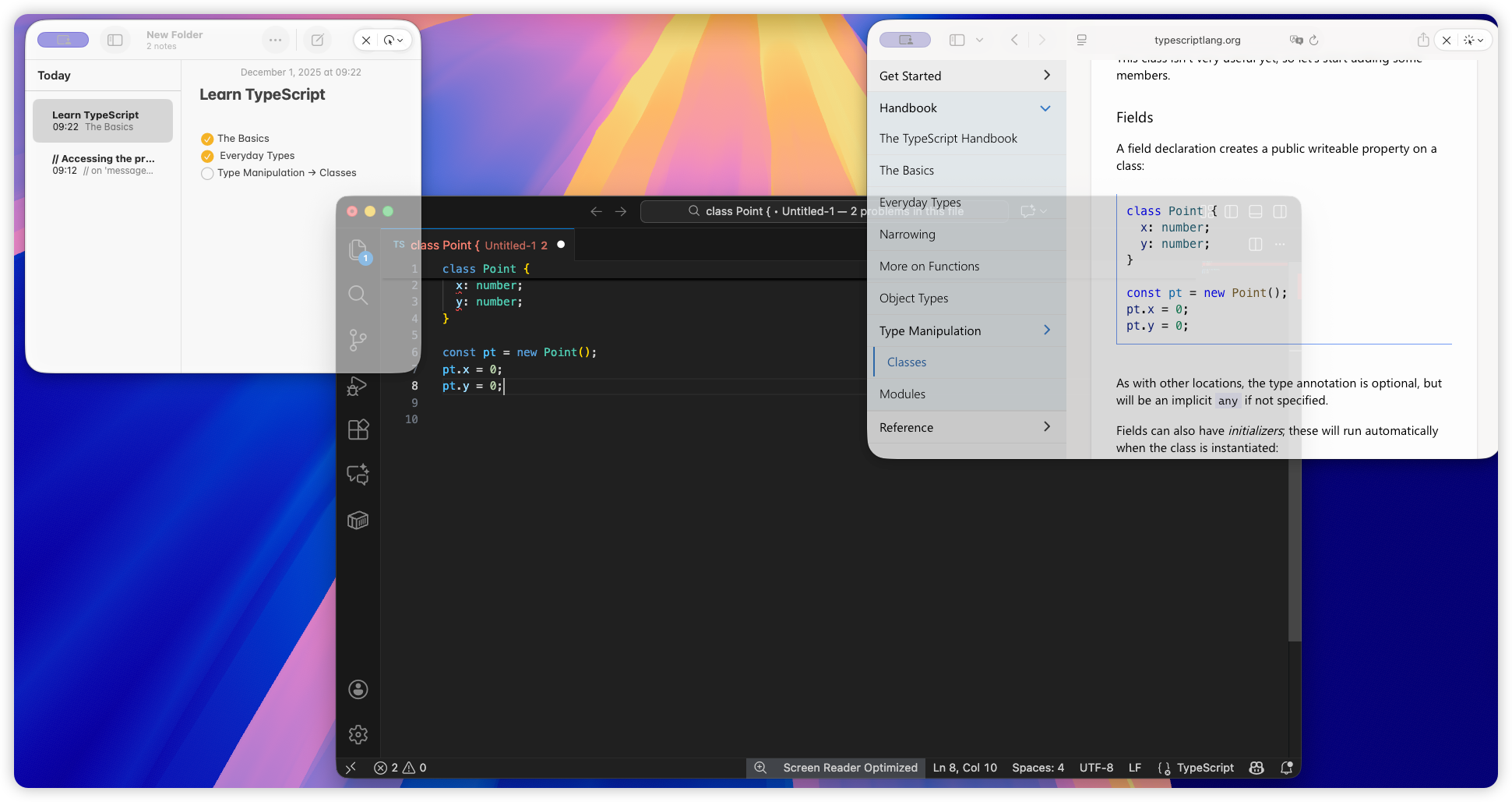
Floating windows solve a different problem: they keep the important stuff visible, so you don’t lose your context every time you move to the next task.
The Hidden Cost of Window Switching
Window switching seems cheap. A quick shortcut, a flick of a gesture, and you’re back where you started.
But cognitively, every switch has a cost:
- You lose visual context
- You briefly re-orient yourself
- Your attention resets, even if only slightly
Do that a few times every hour, and you start to feel it. It’s not that the work is hard — it’s that your focus keeps getting nudged off track.
Faster Switching Is an Optimization, Not a Solution
Tools like Mission Control, Stage Manager, and keyboard shortcuts make switching feel smoother. They’re great at optimizing the transition.
But they don’t question the assumption that switching is necessary.
In many real workflows, the issue isn’t speed. It’s visibility.
- Documentation that keeps disappearing
- Videos that get covered while you work
- Notes that require constant jumping back and forth
No matter how fast switching becomes, the interruption still exists.
Floating Windows Change the Workflow Model
Floating windows take a different approach.
Instead of moving your attention between contexts, they allow multiple contexts to coexist on screen. A reference window stays visible while you work on the main task.
This small shift changes how you work:
- Less mental bookkeeping
- Fewer interruptions
- Longer stretches of focused work
It’s not about doing more at once. It’s about keeping what matters in sight.
Common Scenarios Where Floating Windows Work Better
Learning and tutorials
Following along with a video while actually doing the work is far easier when the video never disappears.
Development and documentation
API references and logs are meant to be consulted continuously, not repeatedly rediscovered.
Meetings and notes
Keeping notes visible during a call reduces the need to break attention mid-conversation.
In all of these cases, floating windows reduce the need for switching altogether.
Why macOS Still Needs This Capability
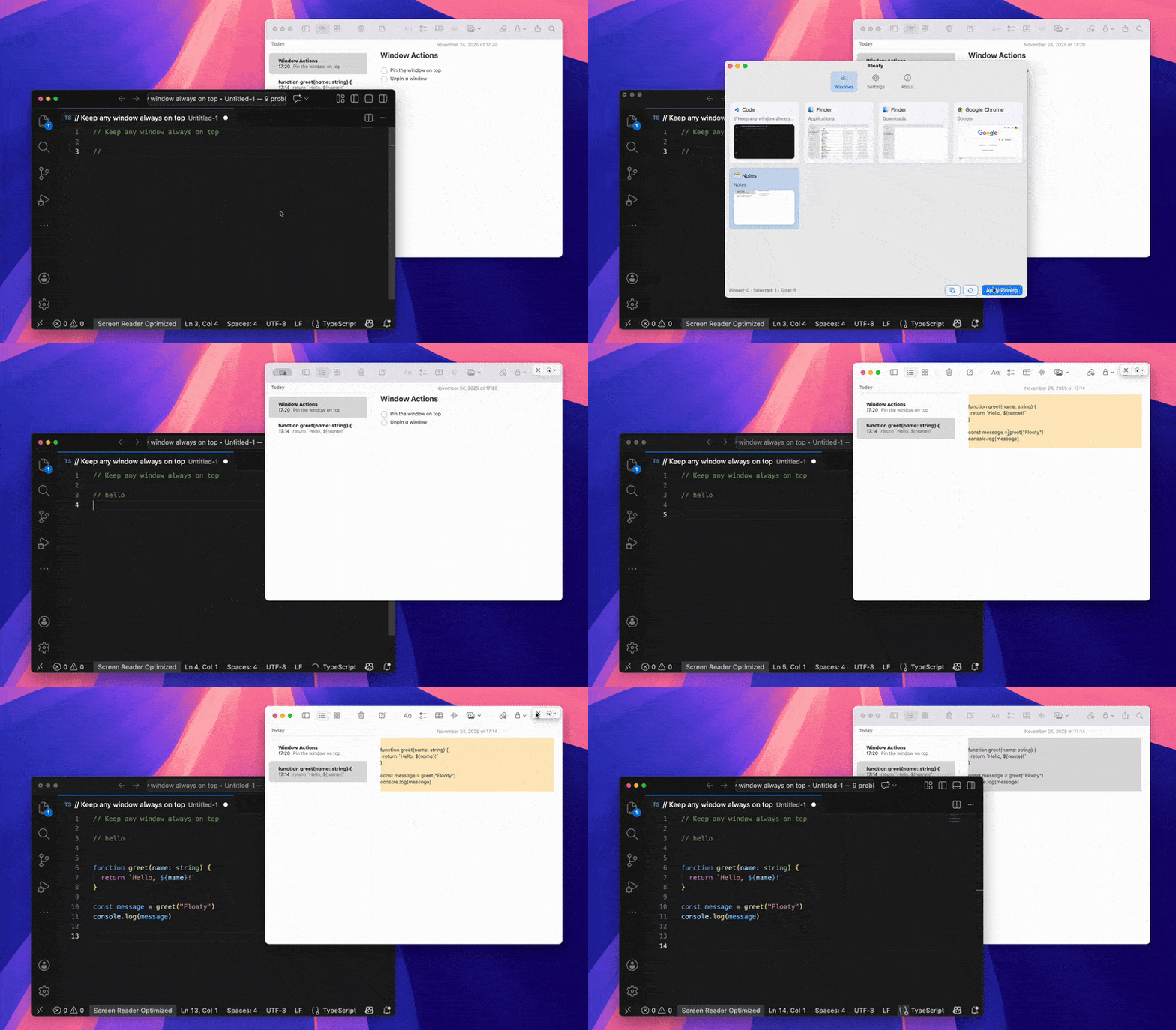
macOS still doesn’t have a built-in way to keep any window always on top. If you’ve ever searched for an always on top mac option or a way to keep window on top mac workflows, you’ve already hit this limitation.
The system is optimized for clean transitions and task separation, not persistent reference.
This gap is why floating window mac tools exist. They don’t replace window management or shortcuts. They complement them by addressing visibility rather than speed.
Where Floaty Fits In
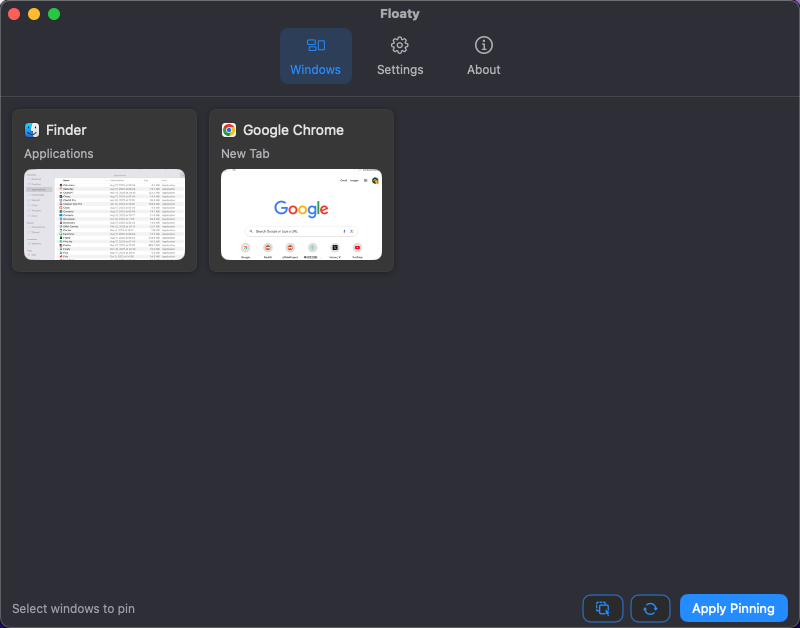
Floaty focuses on one simple idea: important windows shouldn’t disappear.
It doesn’t restructure your workspace or introduce new concepts. It quietly keeps selected windows visible so your workflow remains uninterrupted.
Most users don’t notice how often they switch windows until they stop needing to.
Conclusion
Productivity on macOS isn’t just about moving faster between tasks. Often, it’s about avoiding unnecessary movement altogether.
Floating windows don’t make switching faster. They make switching less necessary.
And in many workflows, that difference matters more than any shortcut ever could.
⭐ Try Floaty
Stop losing your place every time you switch apps.
Floaty helps you keep the one window you need *always visible*—so your docs, tutorial, notes, or checklist stay in sight while you work.
With Floaty you can:
- Keep any window always on top on macOS (no hacks)
- Cut context switching and stay focused longer
- Keep reference material visible without rearranging your workspace
Floaty Free lets you pin one window right away. When you’re ready, Floaty Pro unlocks multi-window pinning, transparency, click-through, and more.