
Multitasking on macOS often means bouncing between Notes, PDFs, browsers, Zoom meetings, and code editors. Unlike Windows, macOS still doesn’t include a built-in “Always on Top” button to keep window always on top mac sessions visible while you work. The good news: there is a simple, clean way to mac keep window visible in 2025. This guide explains every method—what works, what doesn’t, and the easiest way to float any window above the rest.
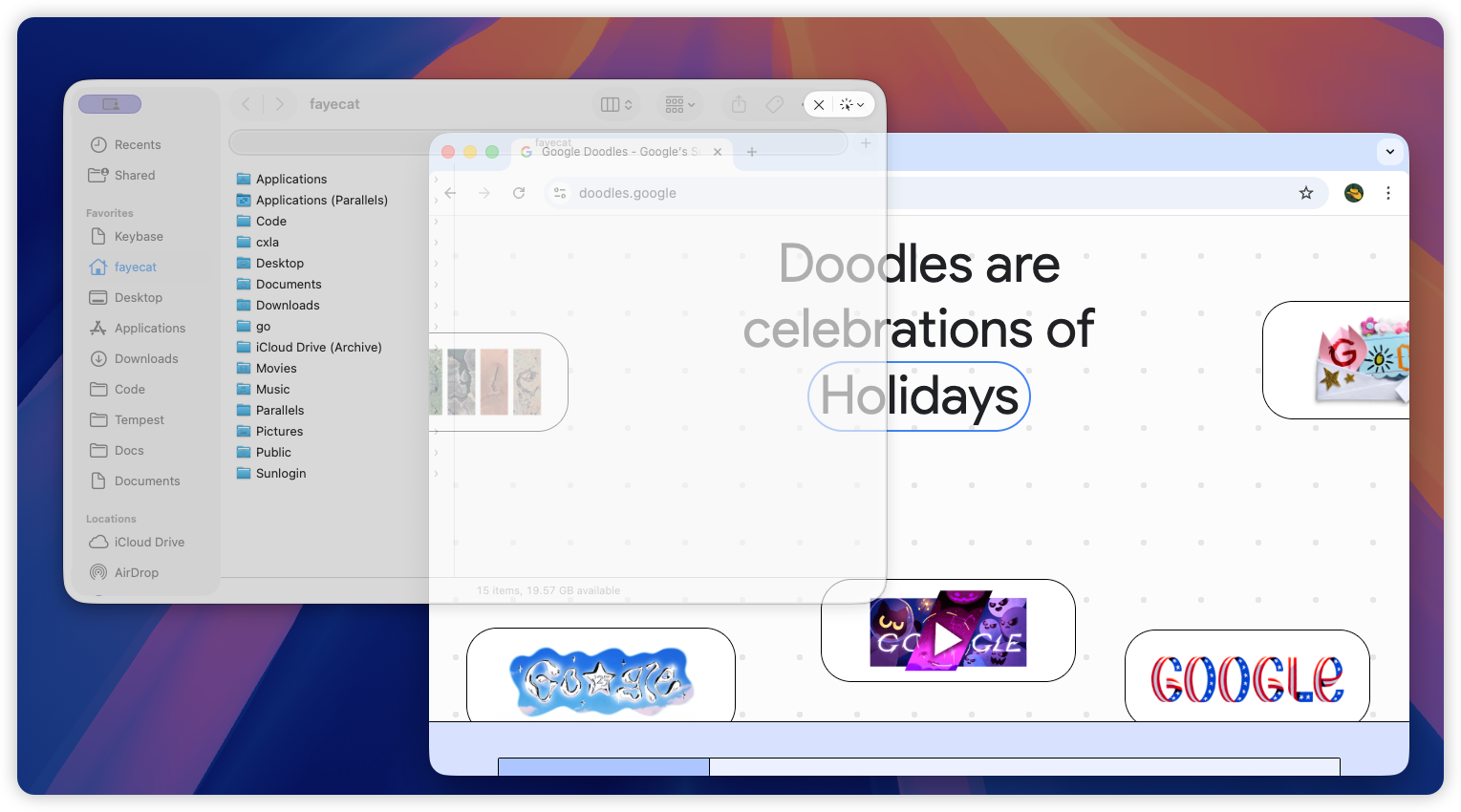
🧩 Why macOS Still Doesn’t Have an Always-on-Top Button
Even across macOS 14 through the Sequoia and Tahoe releases, Apple has never shipped a native mac always on top toggle. WindowServer, Spaces, and Stage Manager are designed for consistent layering, sandboxing, and privacy. A universal “float this window” button would undermine those assumptions and invite window abuse. That gap is why users look for mac floating window and mac pin screen solutions to support picture-in-picture, study workflows, and multi-monitor setups.
🧭 The 3 Ways to Keep Any Window on Top in 2025
1. Use Picture-in-Picture (PiP) — Only for Videos
Safari, Chrome, and QuickTime support Picture-in-Picture to float video players. But PiP handles video only—you can’t pin Finder, PDFs, Notes, Word, Terminal, or Zoom. For real multitasking, this picture in picture mac workaround hits a dead end.
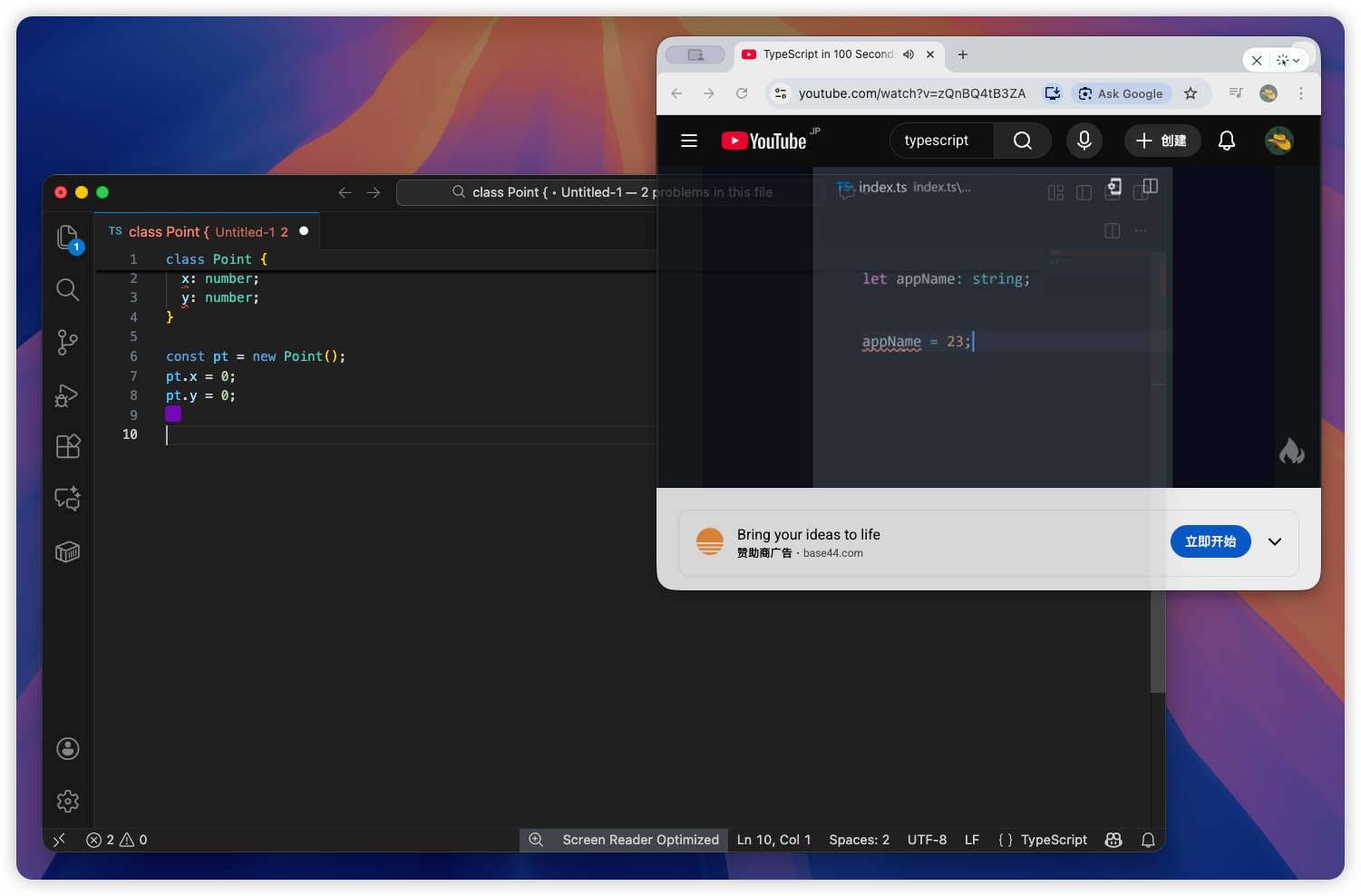
2. Old hacks (Afloat, SIMBL, scripting) — Not recommended
Legacy tools such as Afloat once injected SIMBL code to force a mac overlay window above everything. On modern macOS builds they break, require disabling SIP, and seldom support Apple Silicon. These hacks are fragile, insecure, and unreliable—hardly how to keep any window on top mac professionals trust in 2025.
3. Use a dedicated Always-on-Top tool — Recommended
Dedicated always on top mac tool apps use official Accessibility and Screen Recording APIs to float any window: Finder, Chrome, Notes, PDFs, Terminal, Zoom, Figma, VS Code, Preview, Notion, and more. Nothing leaves your Mac; the permissions keep overlays responsive. If you need float window mac control without hacks, this is the reliable route. Tools like Floaty offer opacity, click-through, auto-unpin, and multi-window support while maintaining a native macOS UI.
🚀 How to Keep Any Window Always on Top on macOS (Step-by-Step)
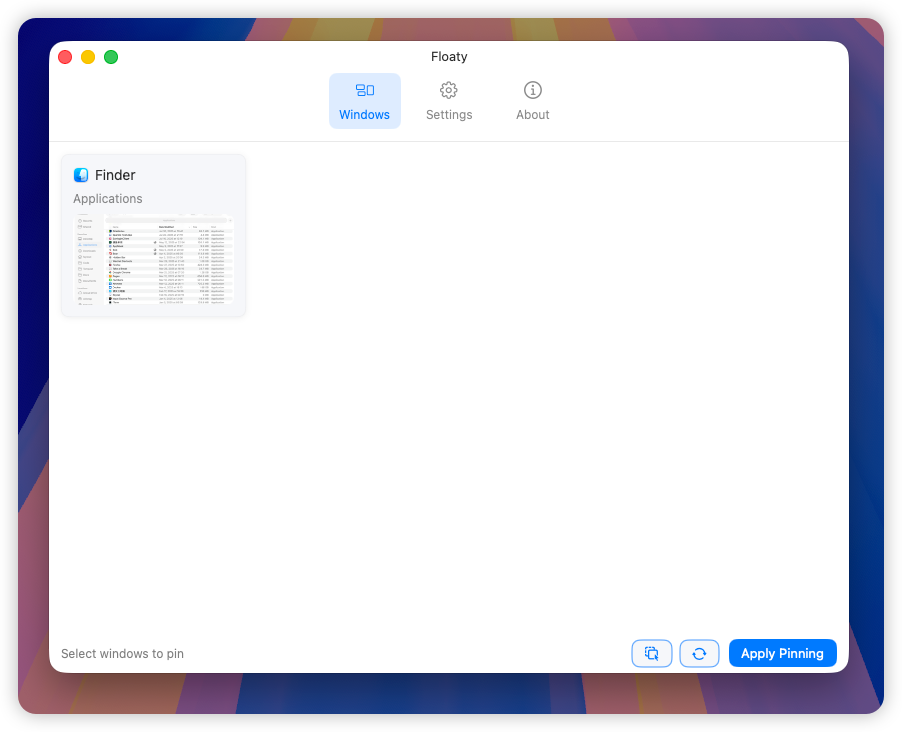
1. Open Floaty
Launch Floaty to see every open app and window in a clean picker.
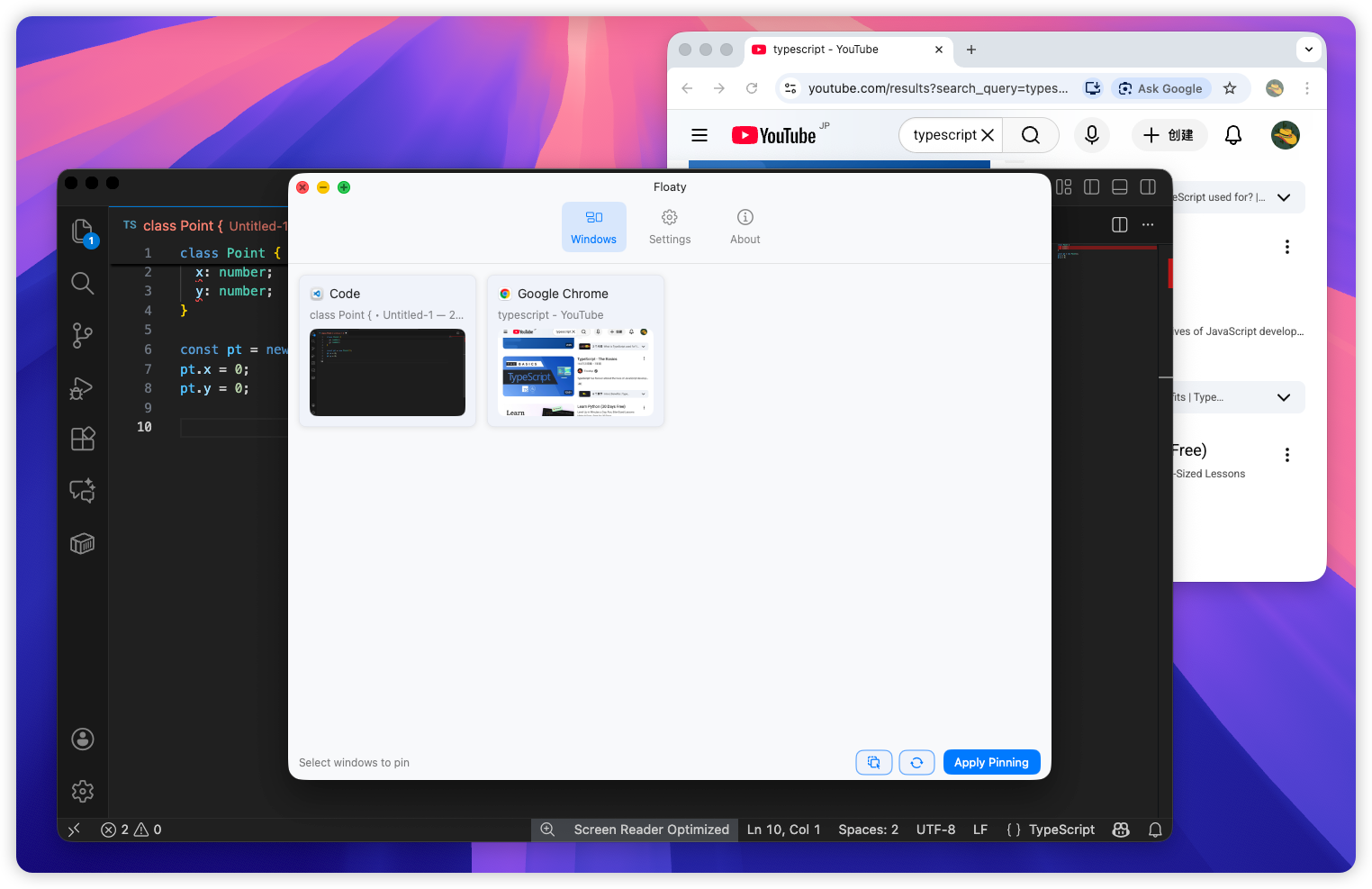
2. Select the window you want to keep on top
Click the card for Finder, Chrome, Preview, Notes, Word, Terminal, a meeting, or any other window you want to float.
3. Click Apply Pinning
Press Apply Pinning to keep the window above all others across Spaces, monitors, and workspaces.
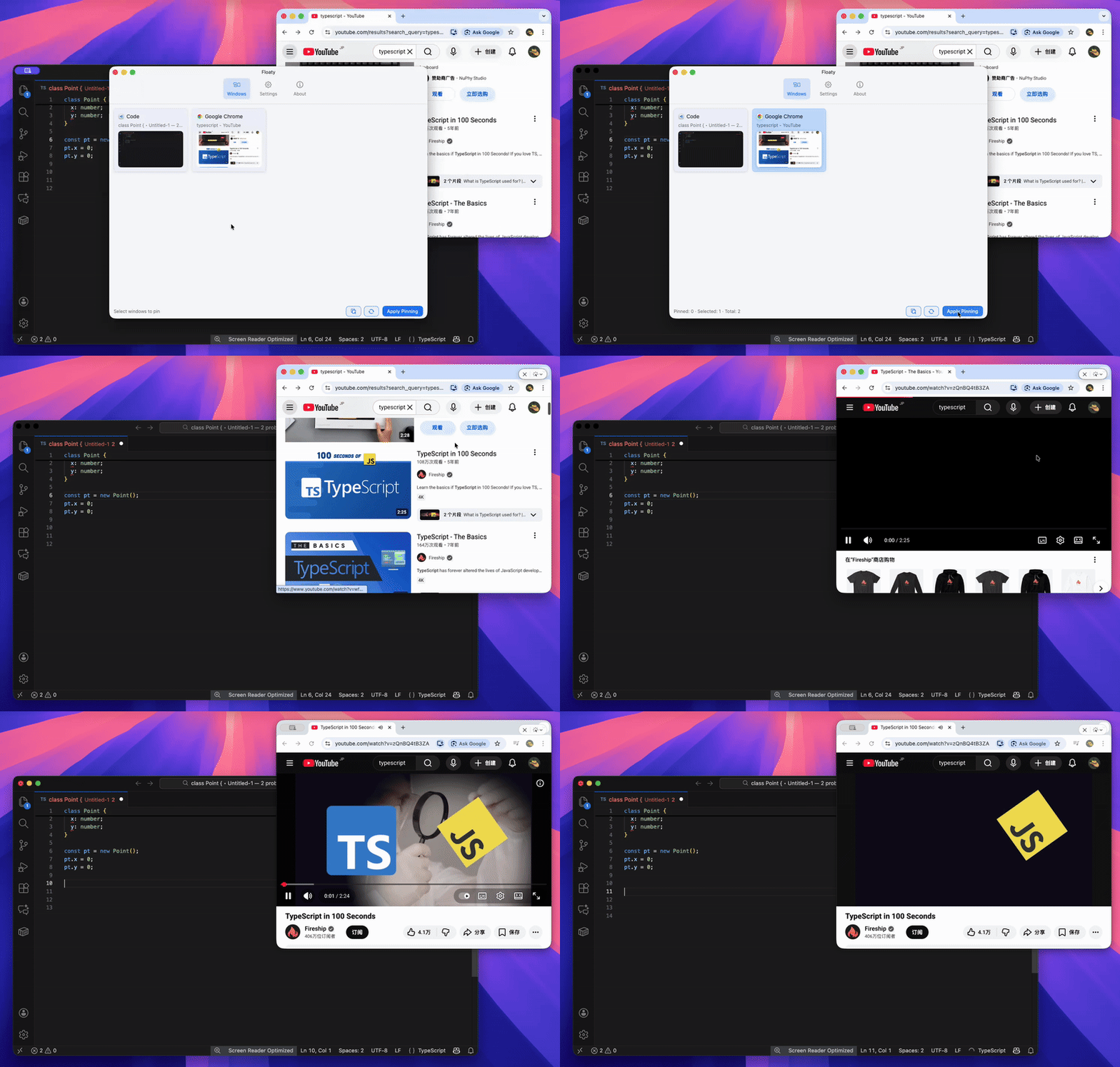
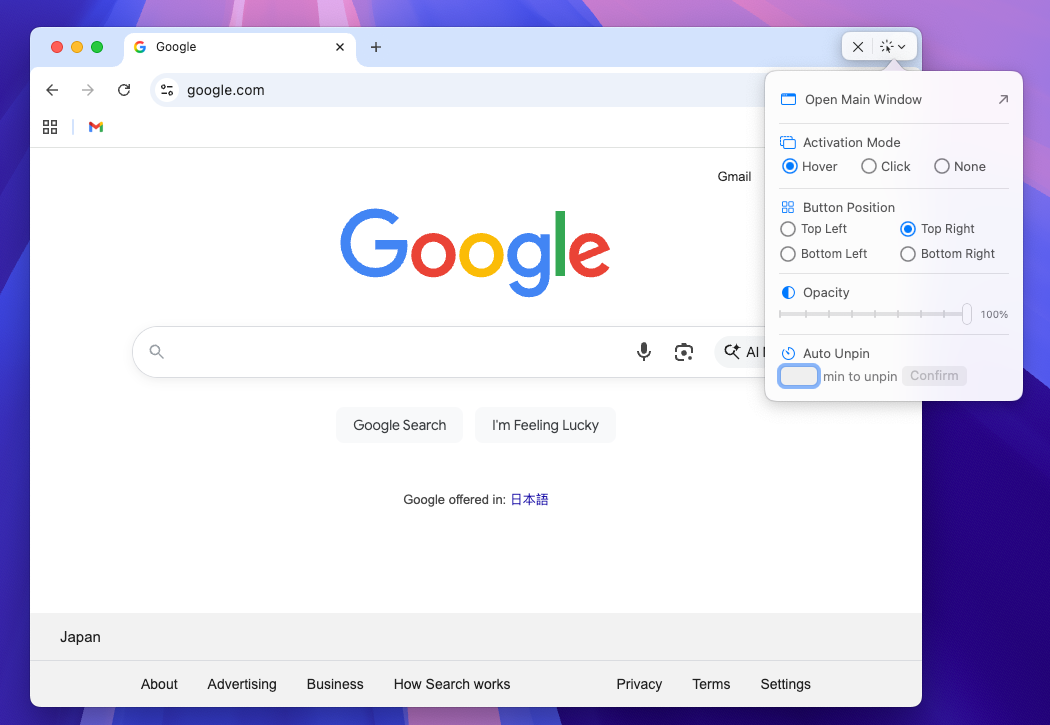
4. Optional: Adjust opacity
Use Floaty’s opacity control to dim the pinned window—60% is a popular preset for reading notes, coding with docs, or keeping a design reference in sight without blocking your canvas.
5. Optional: Enable click-through
Set Activation Mode to None to turn on click-through. That way you can keep a tutorial, checklist, or chat visible while interacting with the app underneath.
6. Optional: Auto-Unpin
Turn on Auto Unpin and choose the timer that matches your workflow. Floaty will release the window automatically after the countdown, perfect for meetings, quick research, or temporary reminders.
💡 Popular Use Cases
For studying
Float PDFs alongside Notes to build a study workflow mac setup without window juggling.
For developers
Keep Terminal logs or browser docs above VS Code for a mac keep window visible workflow optimized for debugging.
For designers
Hold reference images over Figma to maintain a consistent palette or typography during mac window manager sessions.
For creators
Pin a script or shot list above the editing timeline to streamline video or podcast production.
For productivity & meetings
Keep Zoom agendas, calendars, or research material on top so conversations stay organized.
🛠 Troubleshooting (FAQ)
Does it work with full-screen windows?
Full-screen apps live in isolated Spaces, so keep the window in standard or tiled mode before pinning.
Does it work with multiple monitors?
Yes—pinned overlays remain on top across displays and move with the window.
Why do I need Screen Recording permission?
macOS treats floating overlays like live previews. The permission lets Floaty render thumbnails locally; nothing is saved or uploaded.
Will it slow down my Mac?
Floaty is lightweight, optimized for Apple Silicon, and keeps performance smooth.
Will Apple block this?
Unlikely. Floaty relies on public Accessibility + Screen Recording APIs and respects system guidelines.
Can I float a YouTube window on top?
Yes—any browser tab or video player can be pinned like any other window.
Does this work with Chrome, Safari, or Arc?
Yes. Any browser window can stay always on top.
🎉 Final Thoughts
macOS still lacks a native always-on-top feature, but you can keep any window floating in 2025 with ease. Whether you’re studying, coding, designing, presenting, or managing teams, a mac floating window setup reduces context switching and improves focus. If you want a clean, safe, and modern always on top mac tool with opacity, click-through, auto-unpin, and multi-window support, Floaty is designed precisely for that workflow.
🚀 Keep Any Window Always on Top with Floaty
Floaty has a free forever version that lets you pin one window—perfect for studying, coding, browsing, or keeping references visible.
Use the core always-on-top feature with no time limits and no trials.
Unlock:
- Multiple floating windows
- Transparency controls
- Click-through
- Auto-unpin
- App exclusion rules
- Advanced controls