
macOS has become increasingly powerful over the years. By 2025, features like Stage Manager, Split View, and multiple desktops cover many basic multitasking needs.
However, in real-world work, productivity problems often come from something much simpler: important information keeps disappearing from view.
Whether you’re coding while reading documentation, learning from video tutorials, or referencing notes during meetings, frequent window switching breaks focus and slows you down. This guide introduces a practical set of Mac productivity apps that work well together to reduce interruptions and help you build a smoother multitasking workflow.
1. Why macOS Still Needs Productivity Tools in 2025
macOS already offers many built-in window management features, but they are designed around switching between tasks, not keeping context.
In daily work, common frustrations include:
- Reference windows getting covered
- Tutorials disappearing behind active apps
- Repeated context switching breaking concentration
Productivity tools don’t exist to add more features — they exist to remove friction. The apps below focus on keeping essential information accessible and reducing unnecessary interaction costs.
2. What a Good Mac Workflow Should Solve
A reliable multitasking workflow usually answers four questions:
- Can important information stay visible?
- Are common actions fast and effortless?
- Does the main task remain uninterrupted?
- Do tools work together naturally?
The following app categories are chosen with these principles in mind.
3. Window Management: The Foundation of Multitasking
3.1 Magnet / Rectangle — Managing Window Layout
Window layout tools like Magnet and Rectangle solve a basic but important problem: arranging windows quickly and consistently.
They are especially useful for:
- Side-by-side document comparison
- Coding with editor and preview windows
- Organizing multiple apps across a screen
However, layout tools only control where windows are placed. They don’t guarantee that a window will remain visible when you switch tasks.
This limitation becomes obvious when a window is meant to be referenced continuously.
3.2 Floaty — Solving “Always-on-Top” on macOS
Even in 2025, macOS still doesn’t provide a native “Always-on-Top” option.
This becomes a problem in scenarios like:
- Watching tutorials while following along
- Referencing API documentation while coding
- Keeping notes visible during meetings
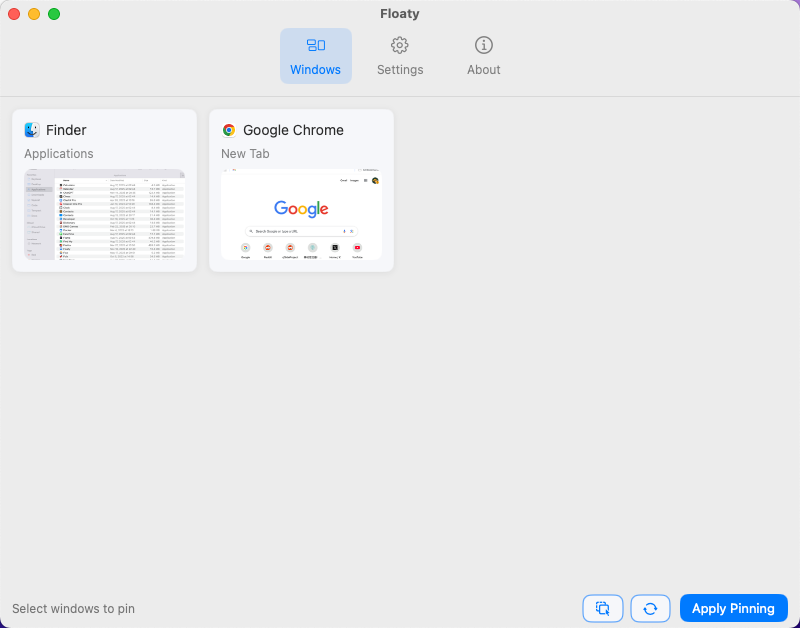
Floaty focuses on one missing capability: keeping any window always visible above others.
Common use cases include:
- Floating videos, documents, or browser tabs
- Adjusting transparency to avoid blocking content
- Using click-through mode when interaction isn’t needed
Unlike layout tools, Floaty doesn’t rearrange your workspace. It simply ensures that important reference windows don’t disappear.
Layout tools decide where windows go. Floaty decides whether they stay in sight.
4. Fast Access Tools: Reducing Cognitive Load
Raycast / Alfred — The Control Center
Fast access tools like Raycast and Alfred reduce the time spent navigating the system.
They help with:
- Launching apps instantly
- Searching files and content
- Running quick commands and workflows
A common workflow pairing is: use Raycast or Alfred to find content, then keep it visible with Floaty. This minimizes interruptions and keeps attention on the primary task.
5. Knowledge & Reference Tools: Keep Information Visible
Obsidian / Notion — Long-Term Thinking Tools
For writing, learning, or research, notes and references often need to remain accessible.
An effective setup usually looks like this:
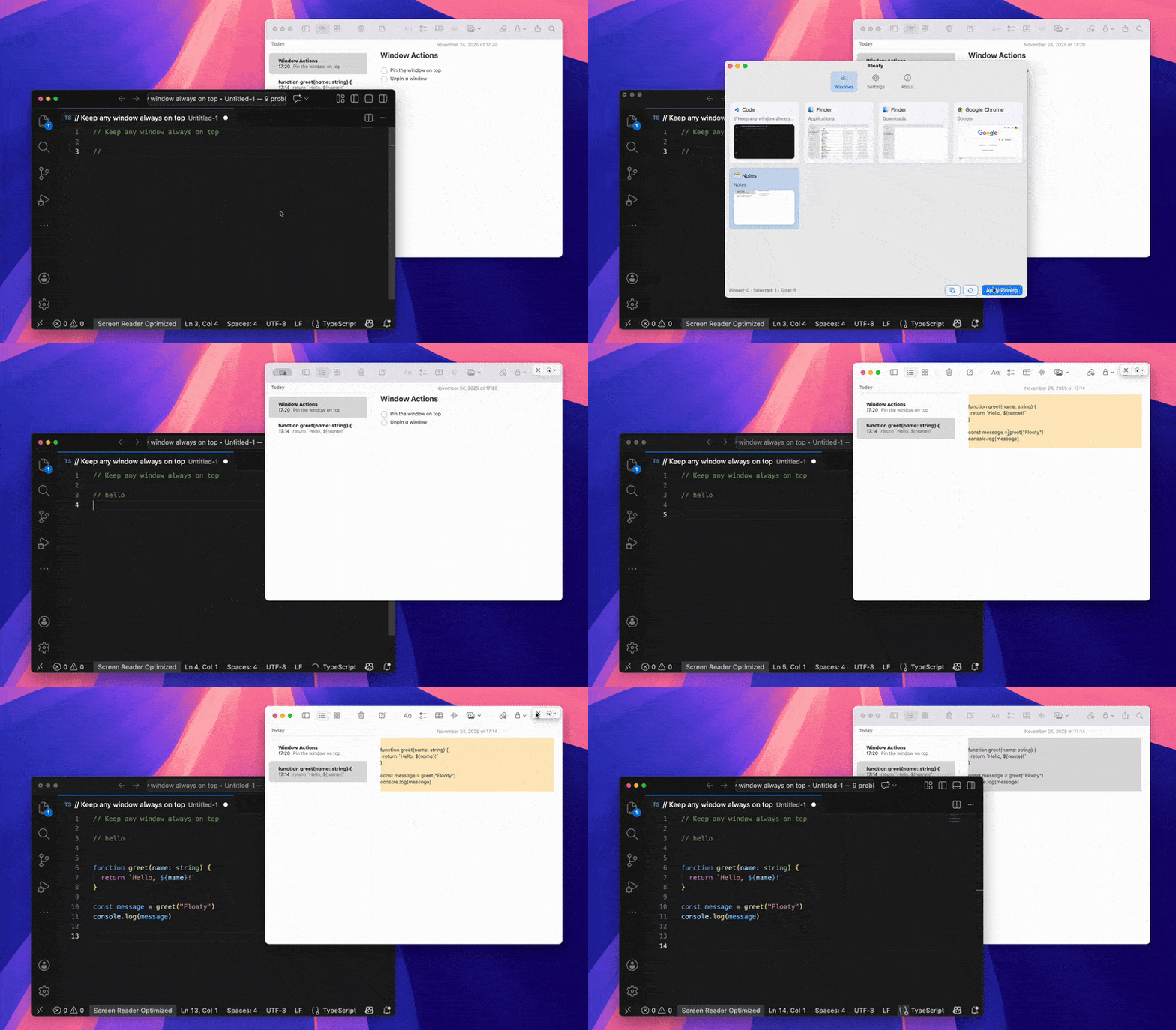
- Main window: writing, coding, or editing
- Floating window: notes, outlines, or references
By keeping reference material visible with Floaty, you reduce mental context switching and maintain momentum.
Floating Browsers and PDFs
Browsers (Safari, Chrome) and PDF viewers (Preview) are some of the most frequently floated windows.
A simple rule works well here:
Float reference content. Keep the main task stable.
This small adjustment can dramatically reduce distractions.
6. Real-World Workflow Examples
Developers
- Main: Code editor
- Floating: API docs or logs
- Secondary: Terminal
Students / Self-learners
- Floating: Course videos
- Main: Notes app
- Secondary: Browser research
Content creators
- Main: Writing or editing tool
- Floating: Research articles or outlines
- Secondary: Asset folders
The shared principle is simple: less window switching, more continuous focus.
7. How to Choose the Right Productivity Stack
When building your Mac productivity setup:
- Avoid installing too many tools
- Identify what interrupts your focus most often
- Fix visibility problems before automation
If your work frequently involves tutorials, documentation, or reference material, an always-on-top solution often delivers more value than complex workflows.
8. Conclusion: Productivity Comes from Visibility
Multitasking doesn’t have to mean constant switching.
In many cases, productivity improves when important information simply stays visible. By combining layout tools, fast access utilities, and floating reference windows, you can shape macOS into a workflow that supports sustained focus.
Floaty’s role is small but essential: keeping what matters in sight.
⭐ Try Floaty
Floaty Free lets you pin one window—perfect for keeping a tutorial, notes, or documentation visible while you work. Floaty Pro expands the workflow with transparency, click-through, and multi-window support.